
How to Use Purchase Orders
Purchase Orders (POs) allow you to track authorized client spending against a defined budget. Once set up, you can attach invoices to a PO to monitor how much of the budget has been used and what percentage remains.
Setting Up a Purchase Order
Purchase Orders are managed from the Client profile. To create one:
Navigate to the client record and open the Purchase Order section.
Click Add to create a new PO.
-
Fill in the following fields:
PO Number: The reference number from your client (must be unique per client)
Start Date / End Date: The validity period for the PO
Total Value: The total authorized spend amount
Terms: Any relevant payment terms
Save the record.
Once saved, the PO will appear in the list with its Total Value populated. Total Spend and Remaining % of Value will show as zero until invoices are attached.
A client can have multiple active Purchase Orders at the same time.
Linking a Purchase Order to a Job Order
If a specific PO applies to a particular job, you can link it during the Job Order Entry Wizard:
Open or create a Job Order.
In the entry wizard, navigate to the Purchase Order step.
Select the relevant PO from the dropdown.
Save the job order.
This link associates the job order with the PO for reference, but does not automatically pull invoice amounts into the PO spend tracking. Invoice attachment is a separate manual step (see below).
Attaching Invoices to a Purchase Order
This is how Total Spend and Remaining % of Value get populated. Invoices must be manually attached to a PO after they have been created.
From the Client profile, open the Purchase Order section.
-
Click on the PO name (displayed as a link in the left most cell) you want to update.
In the PO popup, click the "+" (Add) button to reveal the invoice selector.
-
Use the search/select box to find and select one or more invoices for this client.
Each invoice is displayed with its number and amount for easy identification.
-
As you select invoices, the Total Spend and Remaining % of Value figures in the footer update in real time so you can see the impact before saving.
Click the Save (✓) button to confirm the attachment.

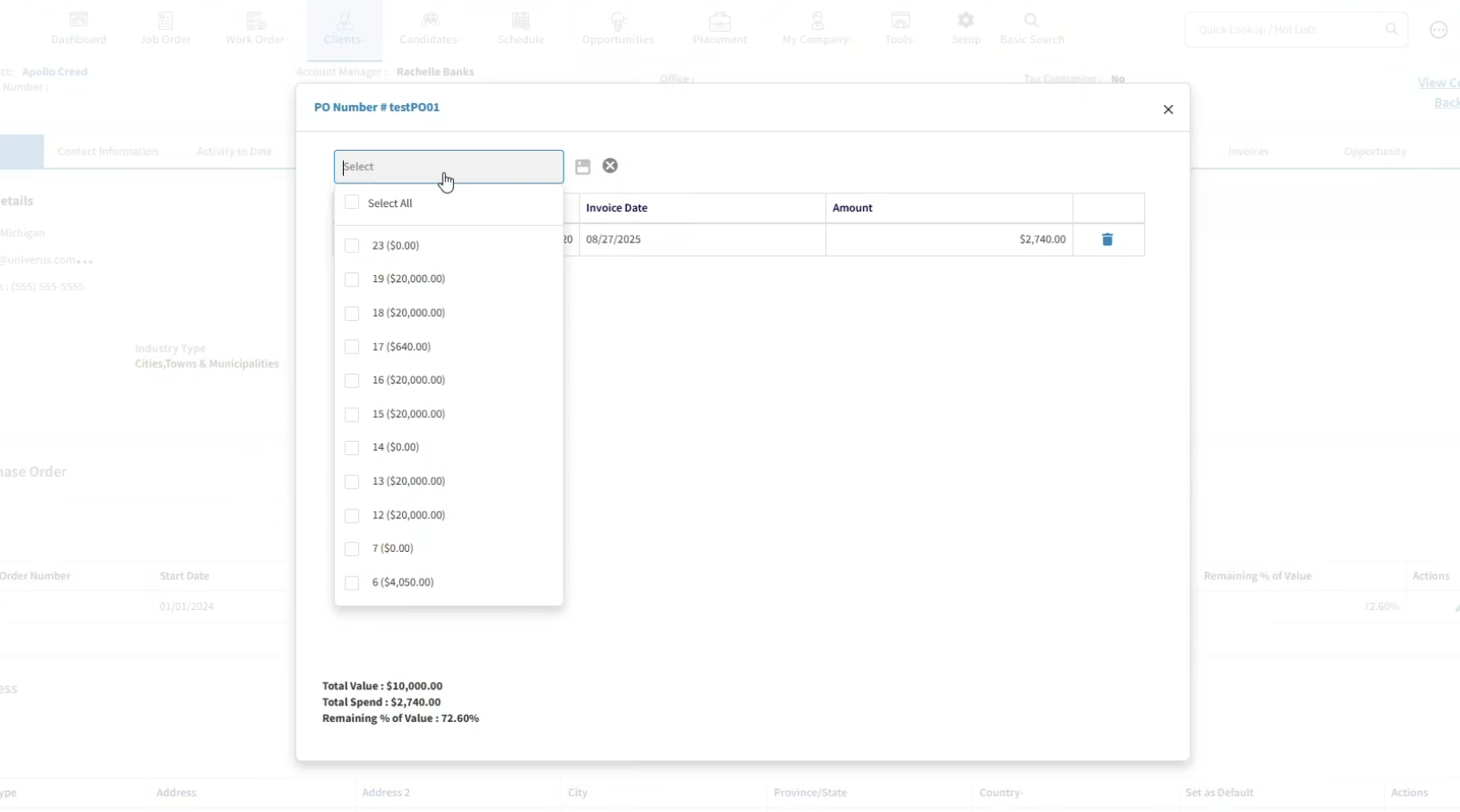
The PO totals will update immediately: - Total Spend increases by the sum of the attached invoices. - Remaining % of Value recalculates as: ((Total Value − Total Spend) / Total Value) × 100
Removing an Invoice from a Purchase Order
If an invoice was attached incorrectly:
Open the PO from the client profile.
In the invoice grid, click the delete (×) icon on the row you want to remove.
The Total Spend and Remaining % of Value will update automatically.
Budget Threshold Alerts
Mindscope can be configured to send automatic reminders and email notifications when a PO's remaining budget drops below a defined threshold. These alerts can be directed to recruiters, account managers, client contacts, or other stakeholders depending on how your triggers are set up.
Contact your system administrator to configure PO budget alerts for your organization.
Important Notes
Invoices are not automatically attached to a PO. Even if a job order is linked to a PO, invoices generated from that job order must still be manually attached to the PO to update the spend tracking.
PO Numbers must be unique per client. Attempting to save a duplicate PO number will return a validation error.
Deleting a PO is permanent and will remove all associated invoice links. This should only be done if the PO was created in error.
Summary of Key Fields
Field |
Description |
|---|---|
PO Number |
Client-provided reference number |
Start / End Date |
Validity period of the PO |
Total Value |
Authorized spend limit |
Total Spend |
Sum of invoices attached to this PO |
Remaining % of Value |
Percentage of budget not yet spent |
Terms |
Payment terms (optional) |